

One UI 8.5: 4 settings to tweak right after install
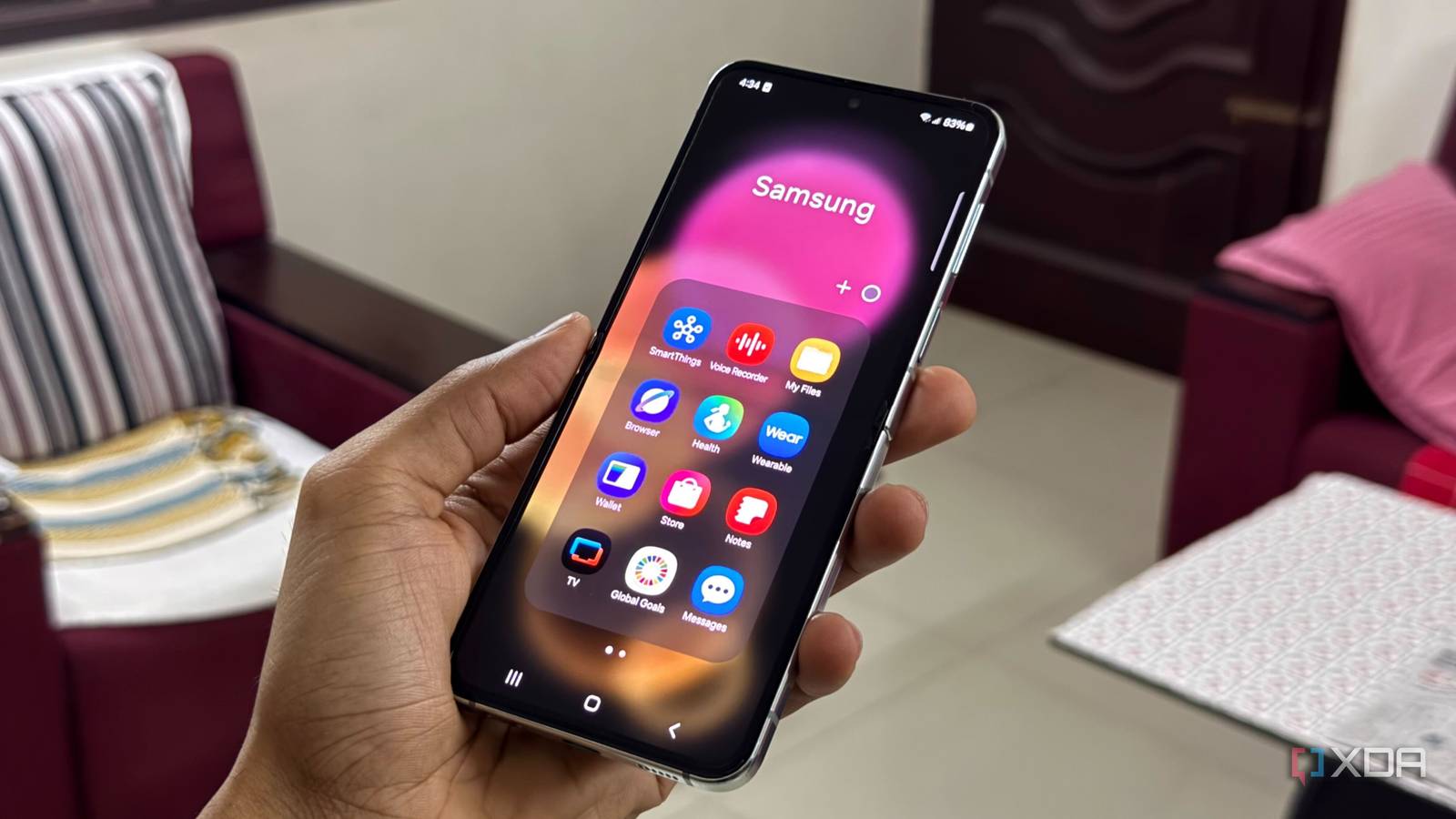
Samsung’s One UI 8.5 lands with a wave of new toggles and refinements, but the fastest way to feel the difference is to spend a few minutes in Settings. Among the dozens of changes, four options stand out for turning everyday tasks smoother, safer, or simply more personal. None require expert tools—just built-in sliders and toggles that take minutes to set once and forget.
Reclaim your privacy with granular app permissions
One UI 8.5 tightens the reins on data-hungry apps by surfacing permission controls earlier in the Settings menu. Head to Settings > Privacy > Permission manager and you’ll notice new toggles for location, camera, and microphone access that weren’t so accessible before. The change makes it easier to audit which apps can peek at your whereabouts or turn on your camera without a second thought.
Make notifications behave the way you do
Notifications now respect your rhythm—literally. Under Settings > Notifications > Do Not Disturb, One UI 8.5 introduces a “Sleep schedule” option that ties quiet hours to your bedtime routines tracked by Samsung Health or Google Fit. Set it once and your phone automatically silences late-night pings without manual toggles every evening.
Speed up daily swipes with edge panels
Edge panels finally feel native to One UI 8.5. After the update, swipe from the right edge to reveal quick tools like Device Controls, Smart Select, or your favorite apps—all without digging into menus. To enable or rearrange them, go to Settings > Display > Edge panels and pick what matters to you. A small tweak, but it shaves seconds off routine tasks.
Lock down sensitive folders with a second password
Files and apps tucked inside Secure Folder now sit behind an extra shield. One UI 8.5 adds an option to require your Samsung account password before opening Secure Folder, adding a second layer of protection beyond the usual PIN or pattern. Turn it on in Settings > Biometrics and security > Secure Folder > Lock type, then select “Password” for the extra gate.
Why it matters
One UI 8.5 isn’t just another update—it quietly shifts routine controls into clearer sightlines. For users tired of hunting for permissions or toggling Do Not Disturb manually, these tweaks deliver measurable convenience without new hardware or third-party tools. The real win is turning “set it and forget it” options into habits that protect privacy and speed up daily use, proving that the best software updates are the ones you configure once and enjoy forever.
Source: XDA Developers. AI-assisted editorial synthesis — TechnoExpress.