

Why your GPU might be stuck on slow PCIe speeds
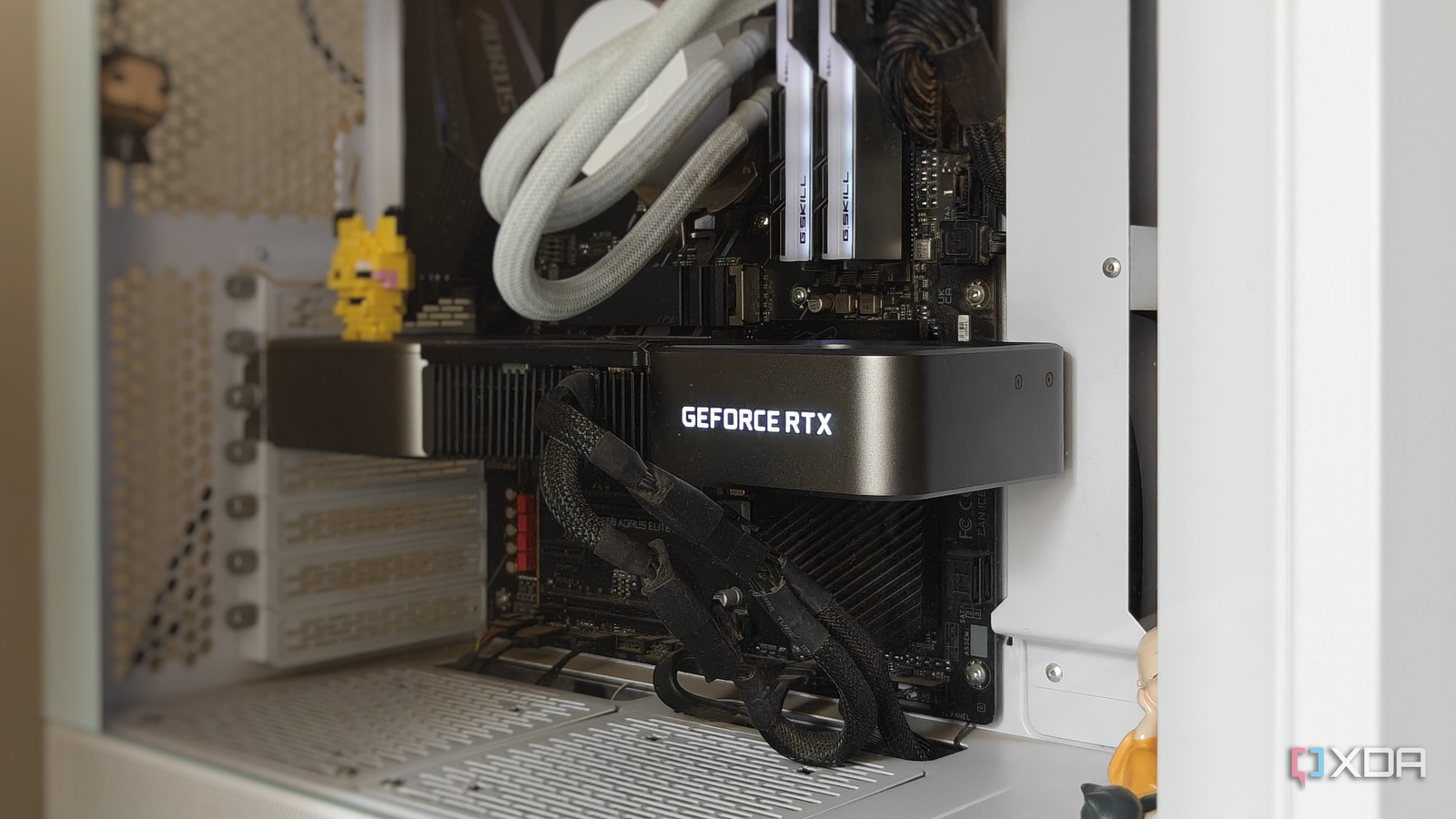
Windows won’t tell you if your shiny new PCIe 5.0 graphics card is actually negotiating a slower Gen 3 or Gen 4 link, quietly throttling your gaming or rendering performance without any on-screen warning.
The hidden bottleneck beneath your desk
Every desktop PC owner assumes that plugging a PCIe 5.0 GPU into a PCIe 5.0 slot automatically delivers the promised bandwidth. Yet, Windows provides no visual cue—no system tray icon, no event log entry—when the link falls back to an older, slower PCIe generation. The issue stems from how Windows and the motherboard negotiate the link speed based on signal quality, power states, or even BIOS settings. If the connection isn’t clean enough, the system silently defaults to a lower generation, and most users never notice it’s happening.
How to spot the problem yourself
The simplest way to check is to open Device Manager, expand the “System devices” section, and look for your PCIe root port. Right-click it, choose Properties, then check the “Link Speed” and “Link Width” fields. If the listed generation is lower than what your GPU and motherboard support, you’re losing bandwidth. Some users have found their PCIe 5.0 cards running at Gen 3 speeds, a drop that can shave off 5–15% in frame rates in bandwidth-heavy titles. Motherboard manufacturers like ASUS and MSI have acknowledged the issue in forum threads, noting that certain BIOS versions or BIOS settings (such as PCIe Link Speed or Above 4G Decoding) can influence the negotiation.
A patchwork of fixes
There’s no universal cure, but a few steps can help. Updating the motherboard BIOS is the first line of defense, as newer versions often include refined PCIe link training logic. If that doesn’t help, manually setting the PCIe slot to “Gen 5” in BIOS—rather than leaving it on “Auto”—can force the highest stable speed. For users with older motherboards, replacing the PCIe riser cable or reseating the GPU may improve signal integrity. In extreme cases, a different PCIe slot on the motherboard can yield better results.
Why it matters
This silent performance hit affects anyone who expects top-tier bandwidth from a PCIe 5.0 GPU but ends up running at Gen 3 or 4 speeds. Gamers chasing high refresh rates and content creators exporting large video files could see tangible FPS drops or longer render times. The problem underscores how much system-level details—BIOS settings, cable quality, even room temperature—can influence real-world performance. Until Windows or GPU vendors add clearer visibility into PCIe link status, users need to take manual checks seriously.
Source: XDA Developers. AI-assisted editorial synthesis — TechnoExpress.